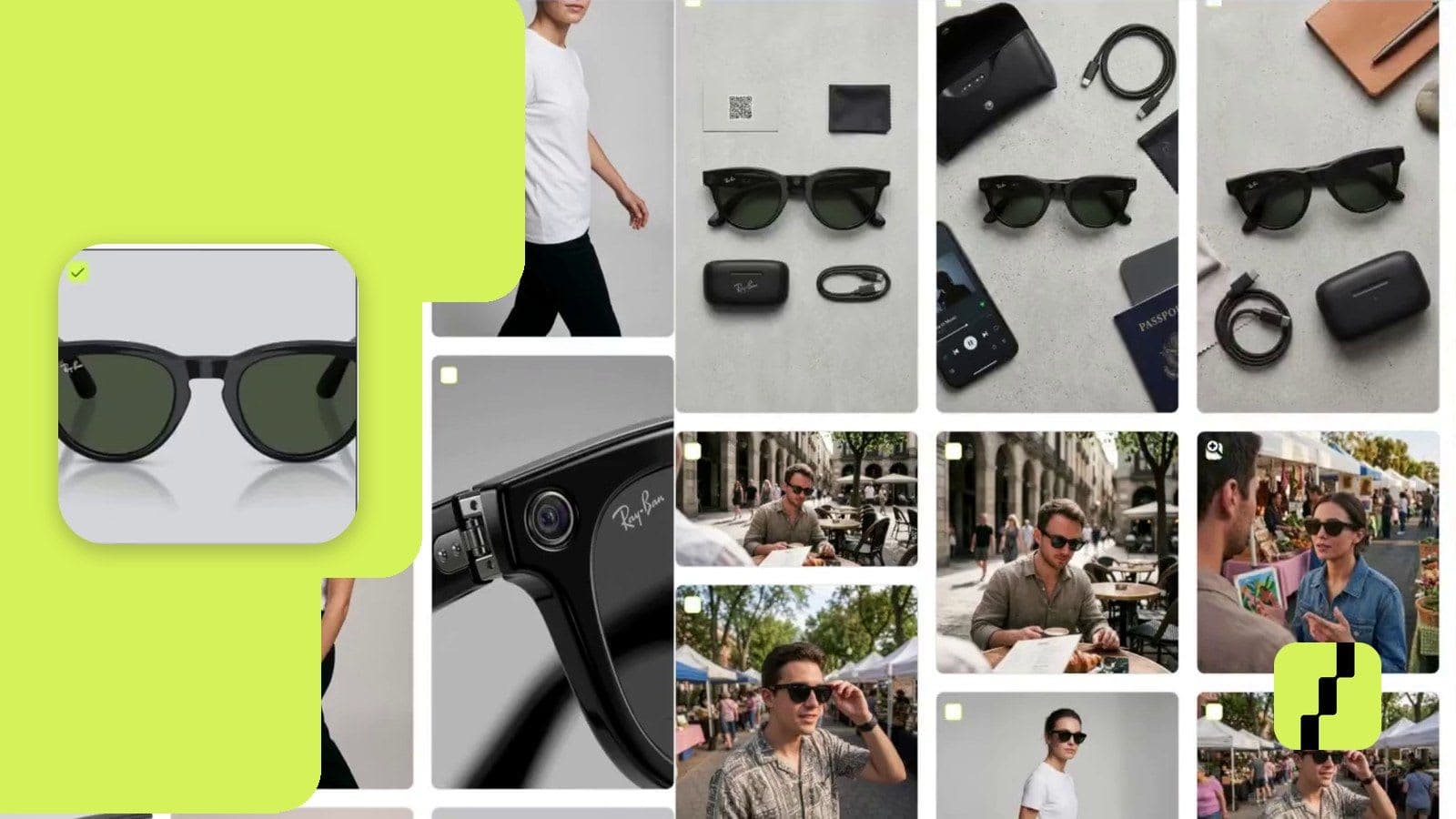
How to change the color of a garment with AI and sell your collection before producing it
With the photo of a single sample and the exact color code in the custom description, you get the garment in every color of the season to take orders before production. Step by step, with a video tutorial.
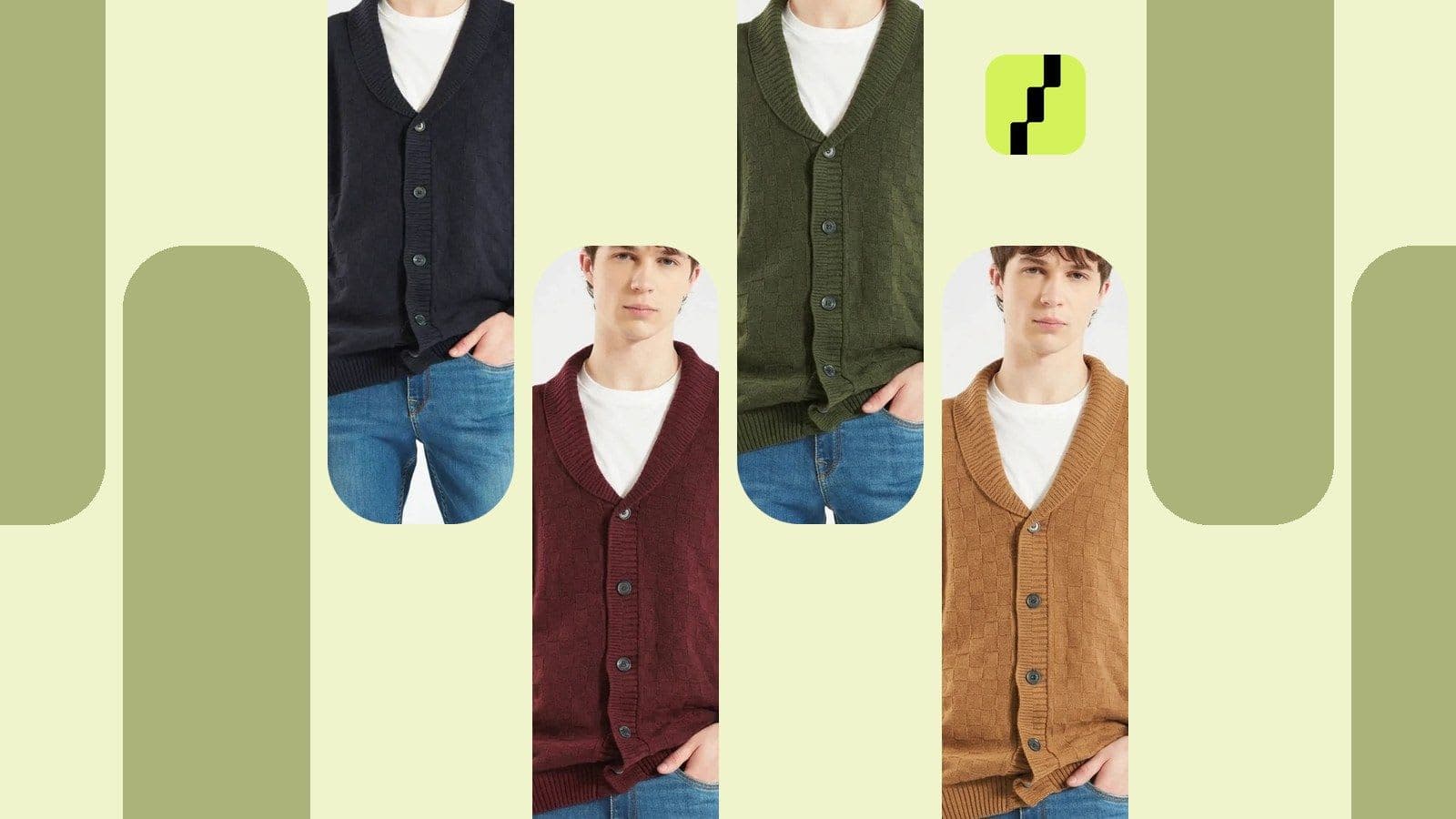
If you make clothes and sell wholesale, the winter collection is sold in summer. Stores place their orders months before the season, when most of the garments are still in production and you have a single sample, in a single color. You no longer have to wait to show the rest of the color card: you can change the color of a garment with AI, starting from that sample.
Until now, you had to wait for each color to come out of production, book the photo shoot and edit. Those are weeks in which the retailer is already deciding what to buy, based on what they can see.
Shoptic is our app for AI product photos for ecommerce: we connect directly to your store and generate images, videos, ads and product page content without a photographer or designer. For fashion, we create AI model photos for clothing and, if you write the exact color code in the custom description, the same garment in every color of your collection.
Why show every color before you have it
Retailers build their orders by style, size and color. If a color has no photo, they order it blind or skip it. According to UX research by the Baymard Institute, when a store doesn't show every color of a product, shoppers tend to assume the ones they see are the only options. Clothing photos in every color are what make each color exist for the buyer.
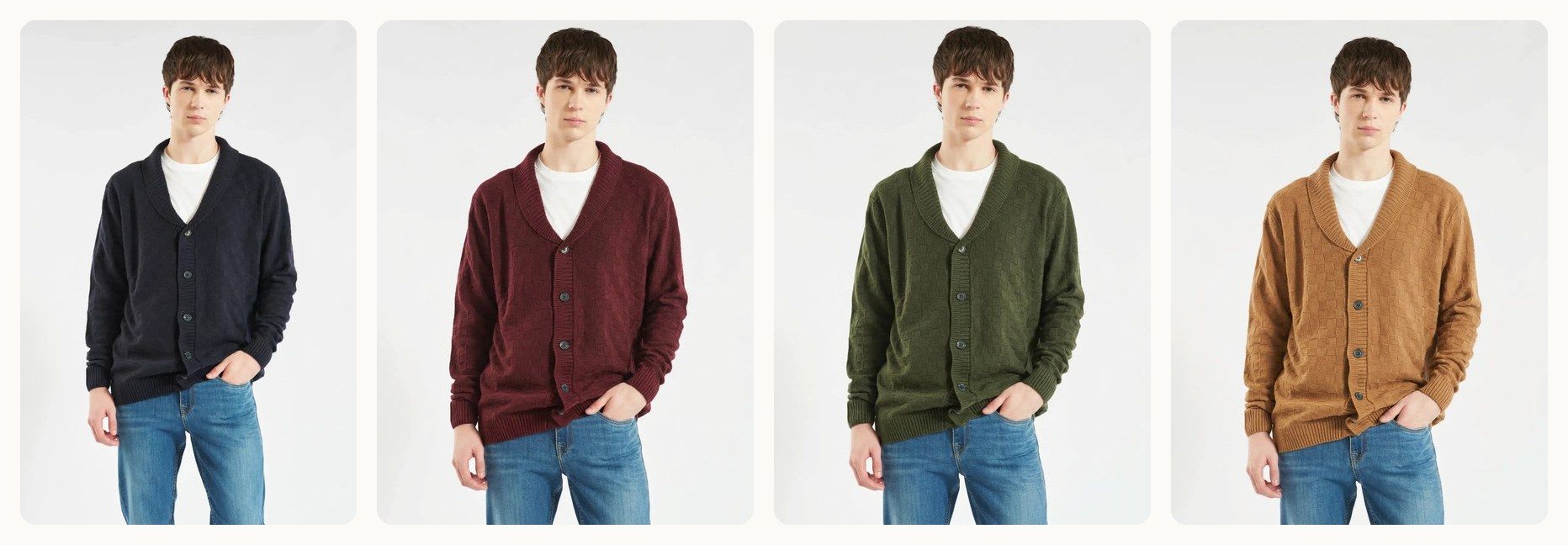
Shoptic, a photo shoot or a generic AI: what changes along the way
There are three ways to get the garment in all its colors. The difference is in everything you have to do and wait for until you have it.
| Shoptic | Photo shoot | Generic generative AI | |
|---|---|---|---|
| Do you need the garment in each color? | No | Yes | No |
| What you wait for | Under a minute per color | Production, shoot and editing: weeks | Nothing, but the work is yours |
| What you write or coordinate | Just the color and its code | Model, location and photographer | The garment, from scratch, in every request |
| Consistent colors | Same style across all | Depends on the shoot | Depends on each request |
| The result | Published to your store from there | You get files and upload them | You download it and upload it by hand |
Compared to a photo shoot, the difference is the wait: with the collection still in production, the shoot can't even happen yet. Compared to a generic AI, it's everything you don't have to write or move: thanks to the connection with your store, the garment is already inside with its photos and description, and the result goes back to your store without downloading anything.
Step by step: the same garment in every color
Step 1. Choose the garment and the reference photos
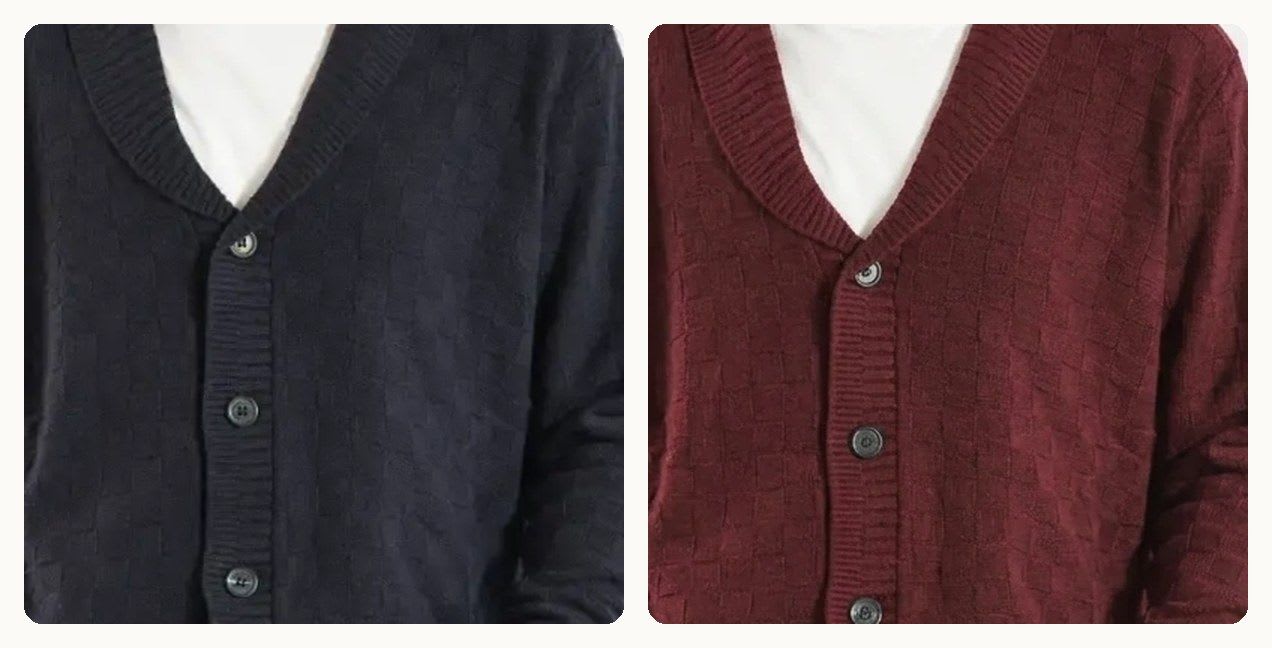
Go to Products, open the garment and choose the reference photos: we used a front shot and a close-up of the knit. The first one you select becomes the main one, and the Studio style copies its framing, so it should be the front shot. If the garment isn't in your store yet, upload the sample photo from My images: one taken with your phone works, as long as the whole garment is in frame, sharp and well lit. See how far you can go from a phone photo.
Step 2. Choose the Model Shot and Studio styles
Model Shot puts the garment on a model, the way the retailer pictures their customer wearing it. Studio shows it on a clean background, the classic catalog look. You choose both and they generate together.
Step 3. Write the color with its exact code
This is the step that makes the difference. In the custom description you write two things: what changes and what stays the same. This is the text we used, in English:

The name alone isn't enough: "burgundy" or "camel" aren't the same shade at every brand, but the HEX code from your color card is. The list of what stays the same is what protects the garment. It depends on what each one has:
| Garment | What stays the same |
|---|---|
| Cardigan or sweater | Knit, stitches, collar, buttons and fit |
| Printed T-shirt | Print, lettering, neckline and length |
| Jeans or pants | Seams, pockets, rips, hem and fit |
| Dress | Fabric, drape, neckline, length and finishes |
| Jacket | Zippers, pockets, hood, seams and logo |
In this article we gathered more tips for writing the custom description.
Step 4. Choose format and resolution, and generate
We chose the 3:4 format, the most common on fashion product pages (all formats are in this guide), and medium resolution, where each image costs 5 credits. If you want to test first, draft resolution costs 1 credit per image and you upscale the one you like afterwards, as we explain in this article. In our test, each batch took less than a minute.
Step 5. Change the code and repeat for each color
For the next color, you replace the name and the code in the same text and generate again. Always one color per generation. When you have the one you like most, you upload it to your store from Creations, in the gallery position you choose, or download it for your catalog.
Try it with the photo of your next sample: 100 free credits, no card needed.
Try it freeThree mistakes worth avoiding
- Asking for several colors in the same generation. One at a time, the result is more faithful and easier to review.
- Mixing the color with other changes. Color, pose, background and length in the same text make everything come out halfway. One change at a time.
- Asking for a view the photo doesn't show. If you want the back, add a photo of the back of the sample. Otherwise, the part that isn't visible gets made up.
How to use the photos in your wholesale clothing catalog
With the garment in every color, your wholesale clothing catalog is ready before production: you send it by WhatsApp or as a PDF to your customers, load it into your wholesale store and open pre-orders on social media. Orders come in with colors and quantities, and you produce what you've already sold. Let your customers know the images are for reference and the final color may vary slightly depending on the dyeing, as with any sample.

Related articles
- Model Shot: AI model photos for clothing, straight from a phone photo
- Custom description: how to write for the AI so it generates what you have in mind
- Generate AI product images using draft mode with only 1 credit
- From phone photo to Paris model with AI
- Images for ecommerce: ideal formats and the new 3:4
Frequently asked questions about changing the color of a garment with AI
Can you change the color of a garment with AI without losing the fabric or the details?
Yes. In Shoptic's custom description you write the new color with its exact code and the list of details that must stay the same, such as the knit, the buttons and the fit. The more specific that list, the more faithful the garment looks in the new color.
What should you write in the custom description to change the color of a garment?
A text with two parts: the new color with its HEX code and what must not change. For example: "Change the color of the cardigan to burgundy, exact color code #6B1E2E. Keep the knit, the stitches, the shawl collar, the buttons, the fit and every detail of the garment exactly the same. Only the color changes."
How is this different from a photo shoot for each color?
You don't need the garment produced in each color. With a photo shoot you have to wait for production, coordinate a model, location and photographer, and edit. With Shoptic you start from the photo of a single sample and get each color in under a minute, ready to publish to your store.
How is this different from using a generic generative AI?
With a generic AI you have to describe the garment from scratch in every request, download the result and upload it to your store by hand. Shoptic connects to your store: the garment is already inside with its photos and description, you only write the color and its code, and the result is published to your store from there.
How many credits does it cost to generate a garment in another color?
At medium resolution, each image costs 5 credits: with the Model Shot and Studio styles, that's 10 credits per color. At draft resolution each image costs 1 credit, ideal for testing before generating the final version. Shoptic's Free plan includes 100 credits one time, with no card required.
Does it work for building a wholesale clothing catalog before production?
Yes. From the photo of a single sample you can get clothing photos in every color of the season, on a model and on a studio background, and send them to your customers to take orders before production. It's worth noting that they're reference images and the final color may vary slightly depending on the dyeing.
Share article: