AI product photo catalog with the same model: the same person across your whole store
With Models you set up your cast once in the Brand Kit and use the same person in all your product photos and videos. Creating a model costs no credits. Watch the one-minute tutorial.
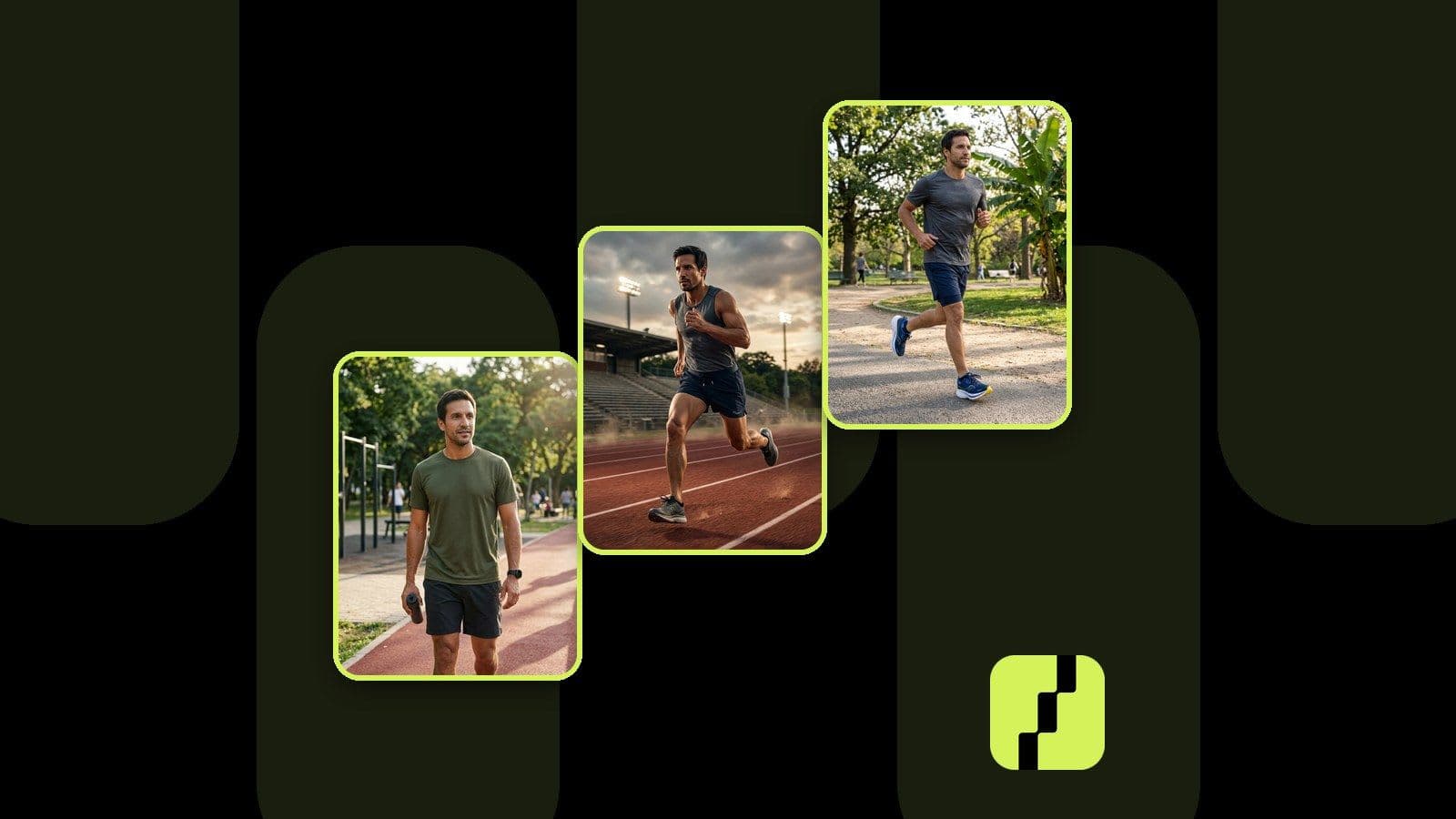
You generate a photo of a T-shirt and a guy with long hair shows up. You generate the shorts that go with that T-shirt and a different guy appears, with a beard. The sneakers, a third one. Each image works on its own, but together in your store they don't look like the same brand.
Until now, building an AI product photo catalog with the same model left you two options: pay for a shoot with fixed models every season, or accept a different person in every photo. We heard that request many times, especially from clothing and footwear brands. So we solved it inside Shoptic.
Shoptic is our app for creating product photos, videos and ads with AI: we connect to your store and your products are already inside, with nothing to download or upload. With Models, you set up your brand's cast once and pick any of them when you generate, so the same person appears in every photo and video.
What Models are and where to find them
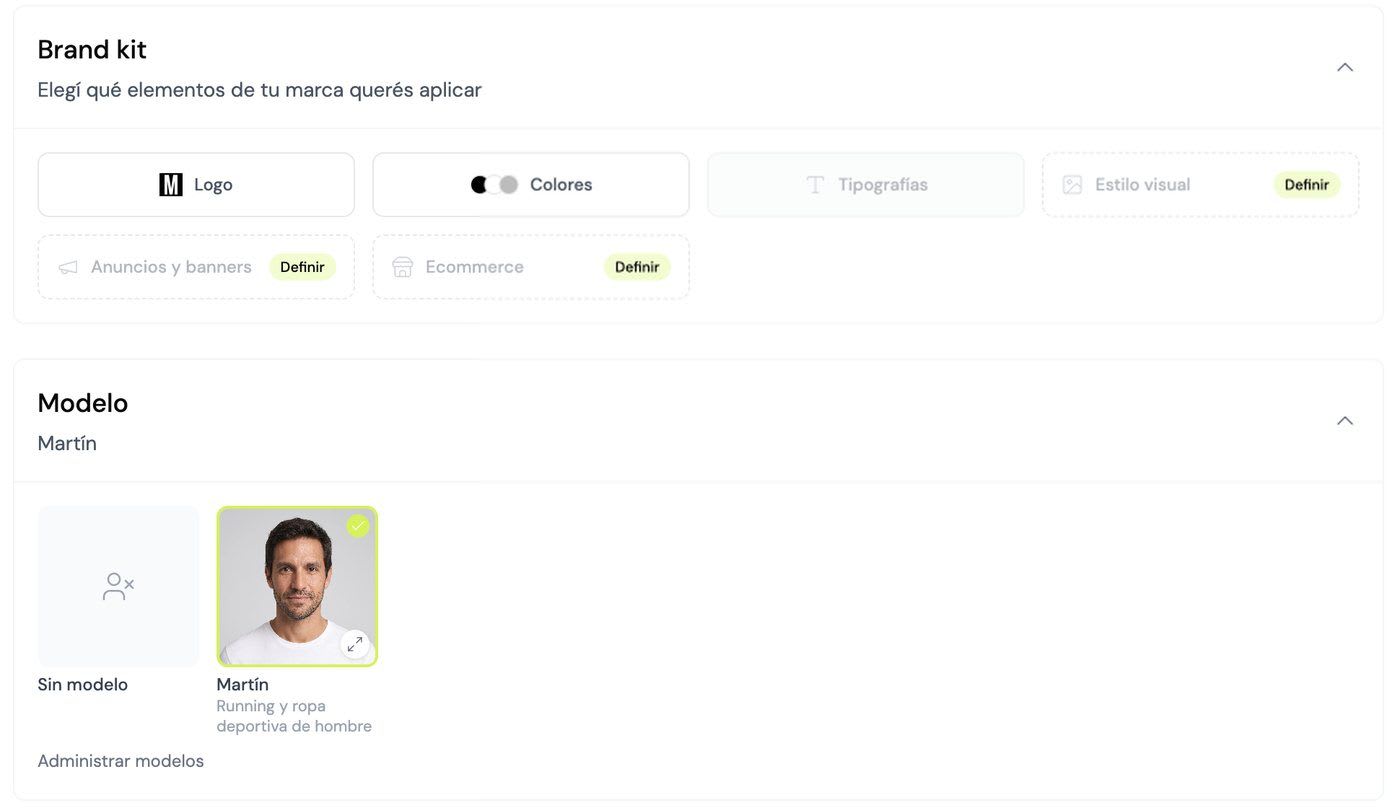
Models is a new section of the Brand Kit, right below Logo, Colors and Typography. That's where you keep the people who represent your brand: each one with a name, a full-body photo, a portrait, a note on when to use them, and a description of their voice.
Then, when you generate images or videos for a product, a Model selector appears. Pick one and that's the person in the scene. Pick none and everything works as usual. If you haven't set up your brand yet, start with the Brand Kit guide.
How to create your model: describe it or upload photos
There are two ways to create a model, and neither costs credits.
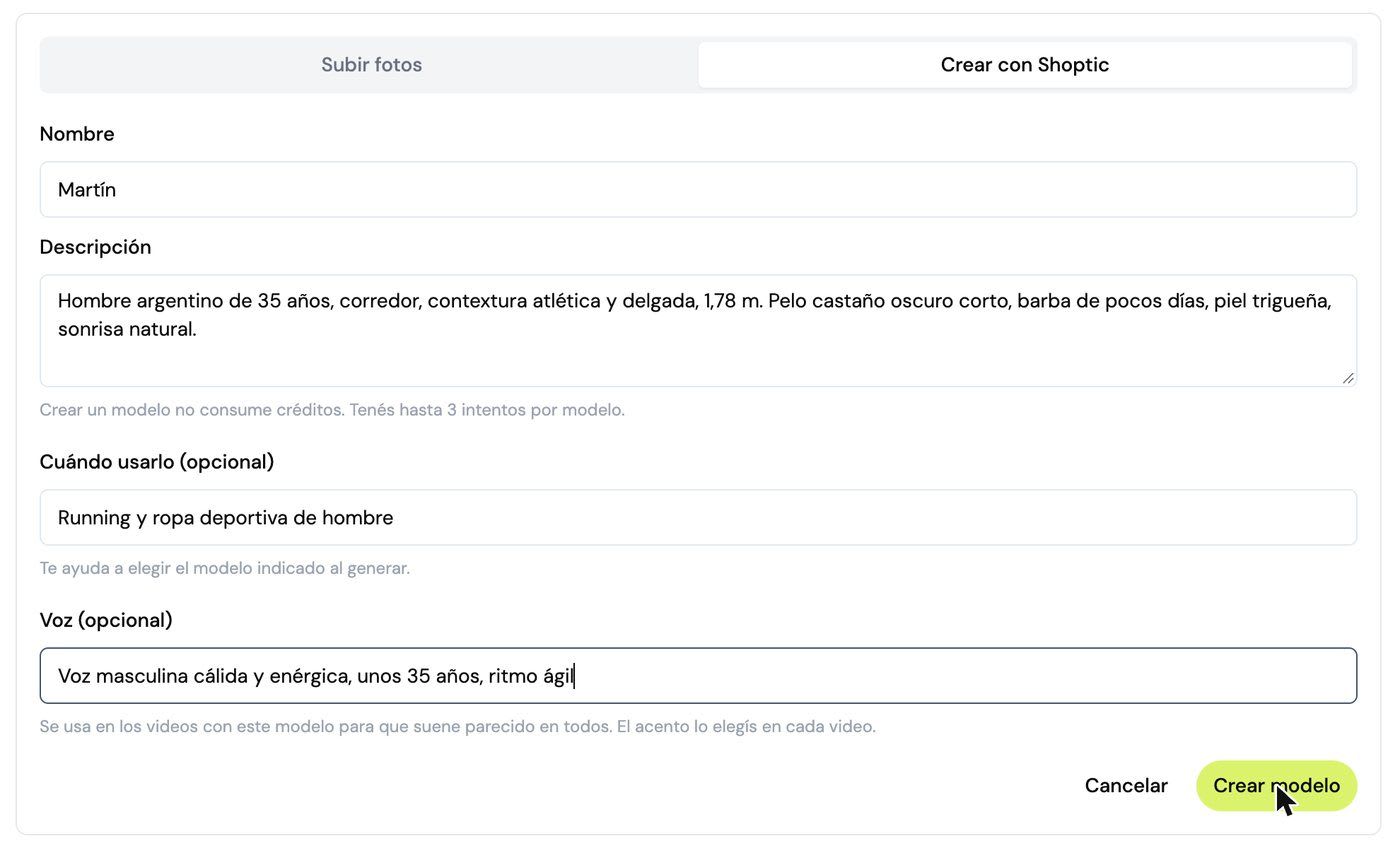
Create with Shoptic. You describe the person the way you'd brief a photo producer: age, features, hair, build, style. For example: "35-year-old man, runner, athletic and lean build, short dark brown hair, light stubble". We generate a full-body photo and a portrait. You get up to 3 attempts per model.
Upload photos. If you already work with a real person, you upload up to 3 photos: the face from the front and the full body (both required) and, if you want, another angle. Each photo must be at least 1024 px on its shorter side, with good light and a plain background. From those we generate a studio version and a portrait. Before saving, you confirm you have that person's permission to use their image: it's required.
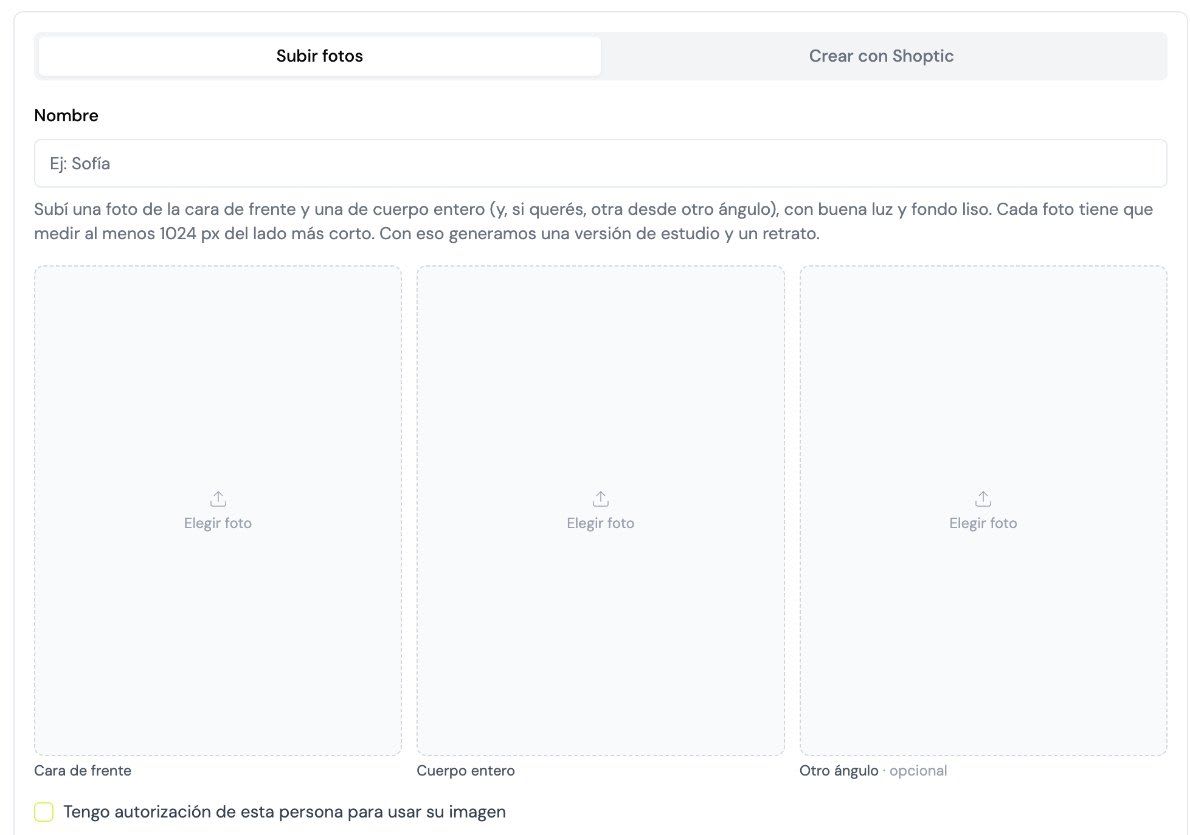
In both cases you fill in two more fields:
- When to use. A short note, like "running and men's sportswear", shown under the name in the selector so you can pick quickly.
- Voice. How this person speaks in videos, for example "warm, energetic male voice, around 35". It's used so they sound similar across all your videos.
The portrait and full-body photo are generated in high quality (2K), and you can open them with zoom to check the face in detail before using the model.

The same person in every product photo
Once the model is created, you open any product, pick the styles you want and, in the Model section, tap their card. The same person appears in every photo, wearing your product, with a new pose in each scene: the model's photo isn't copied, the person is kept.
In the tutorial we generated a T-shirt in three styles (Model Shot, Lifestyle and Action), a pair of shorts and some sneakers. Five AI product photos, three products, the same face in all of them.
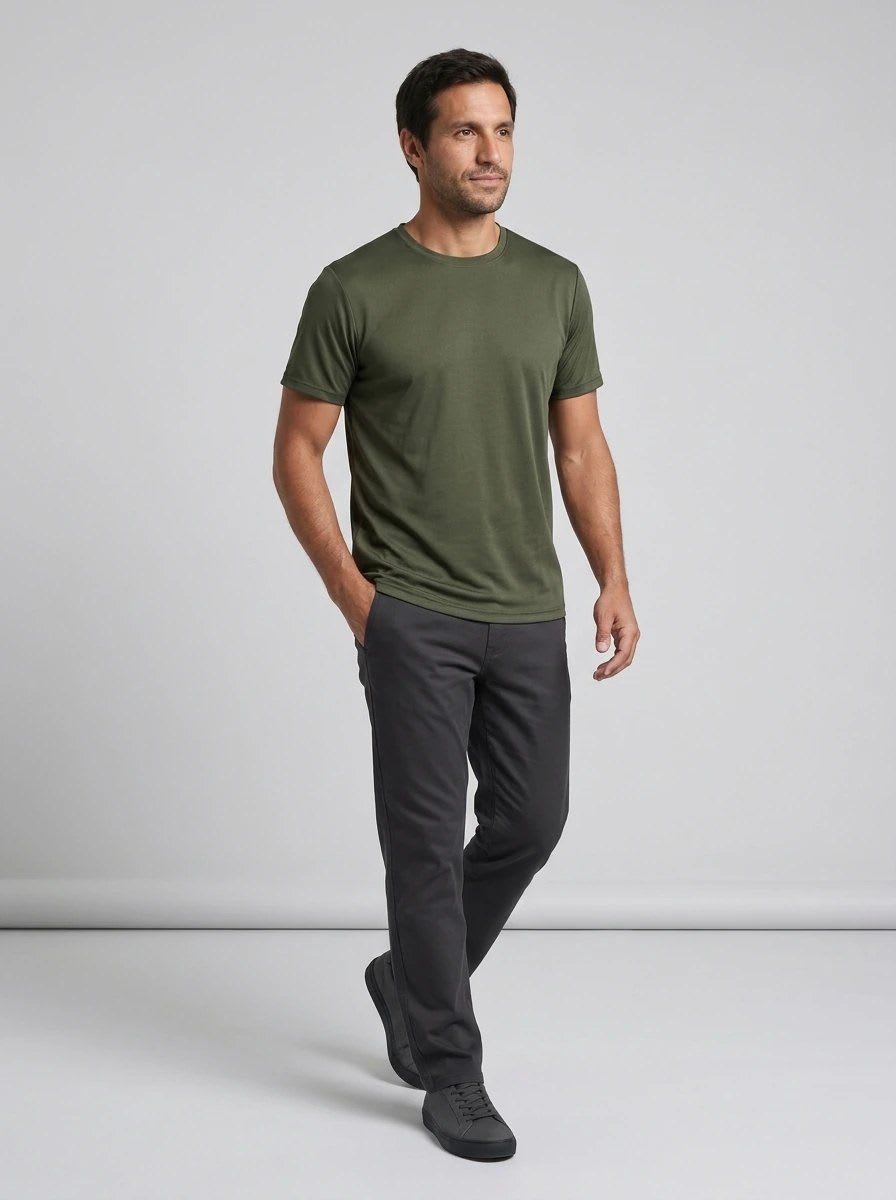
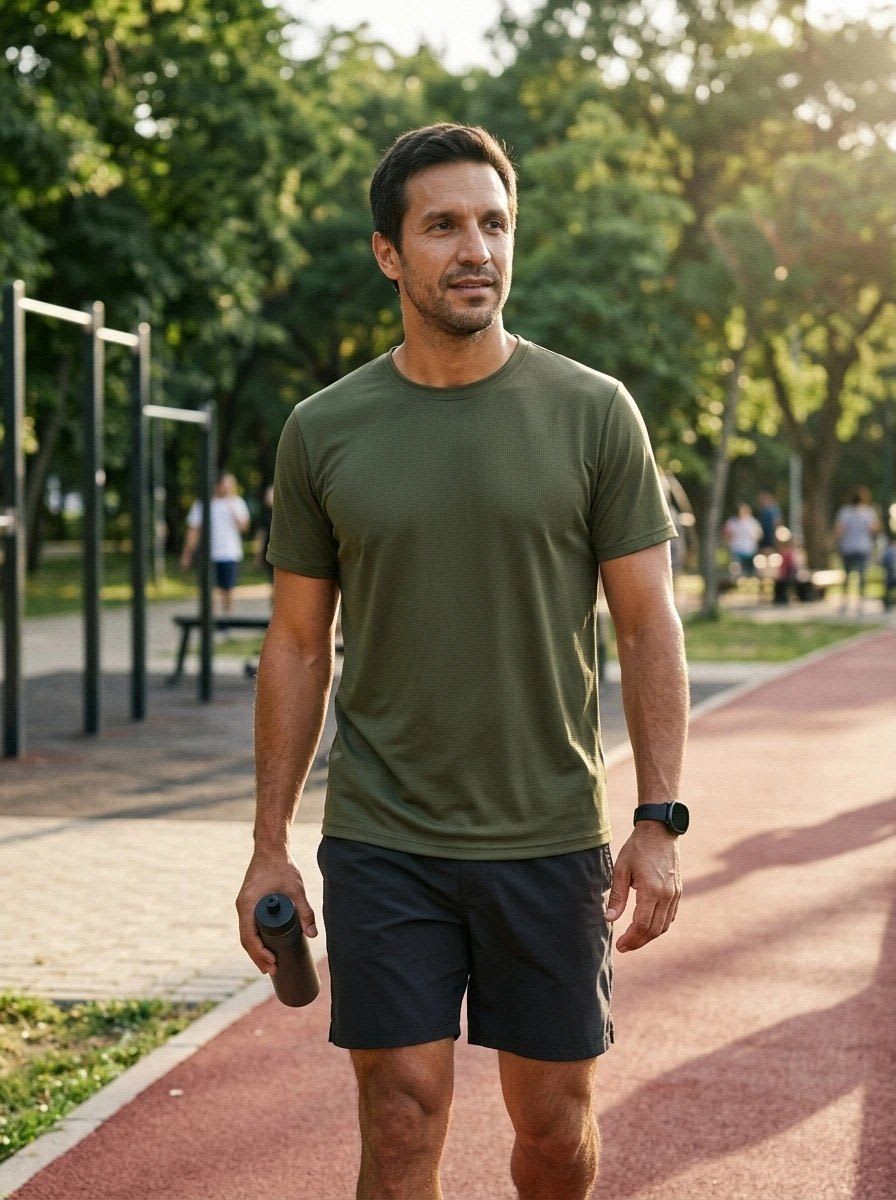
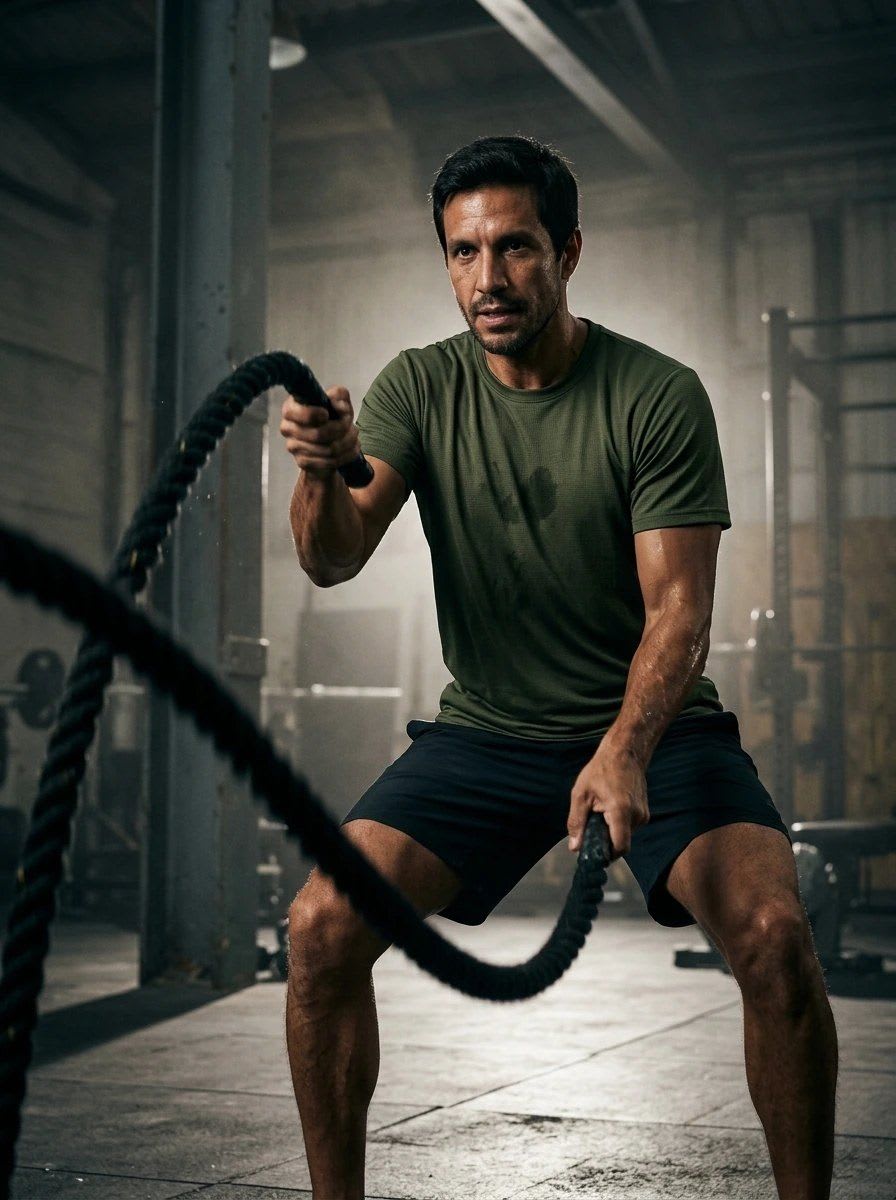

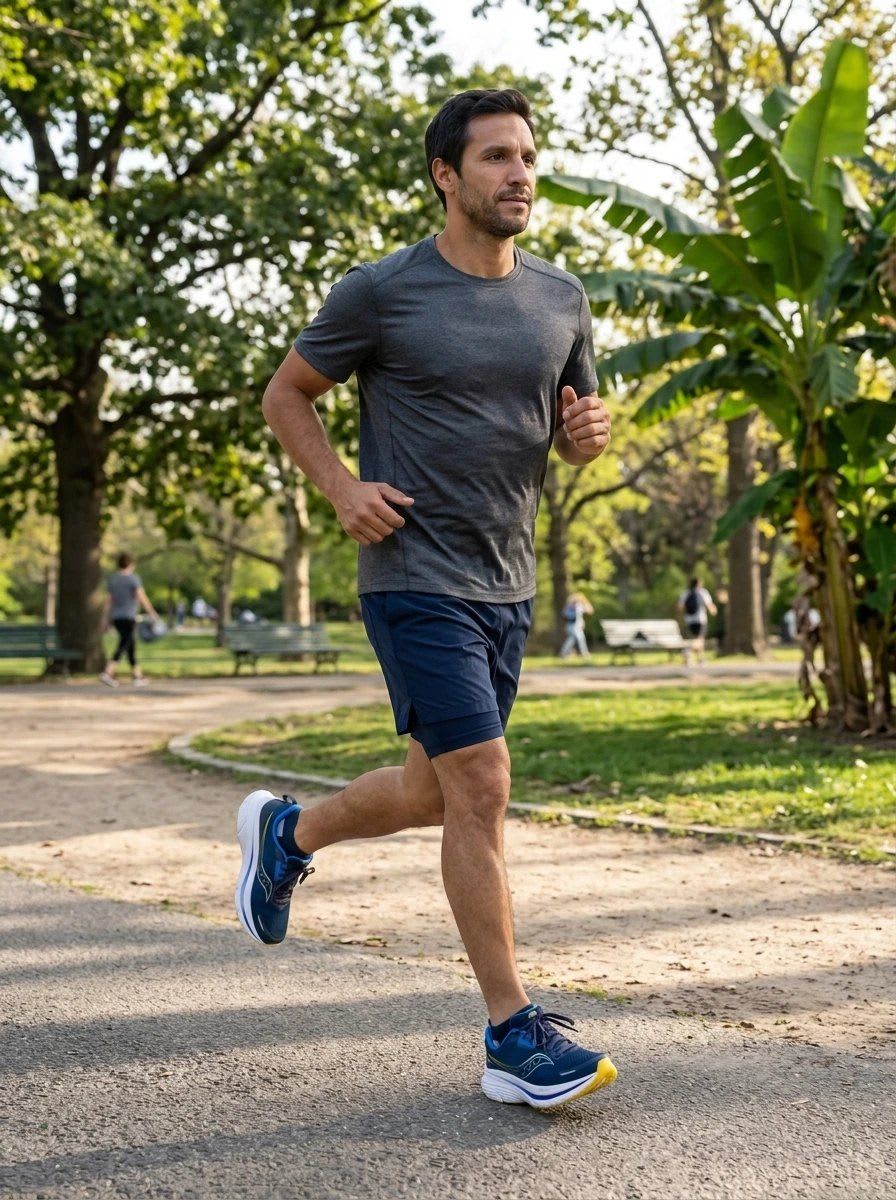
If you sell apparel, pair it with Model Shot, the style for AI model photos for clothing, or with changing a garment's color with a color code to show the whole collection on the same person.
Keeping the same person isn't just an aesthetic detail. Nielsen Norman Group found in their user studies that people pay attention to photos that carry information and skip the ones that are decoration (Photos as Web Content). A catalog where the person changes with every product reads as loose photos; one with the same person reads as your brand.
AI product video with your model
The Model selector is also in the Videos tab. You pick the style (for example, UGC Testimonial), your model and the audio accent, and generate. The same person from your photos shows up presenting and talking about your product.
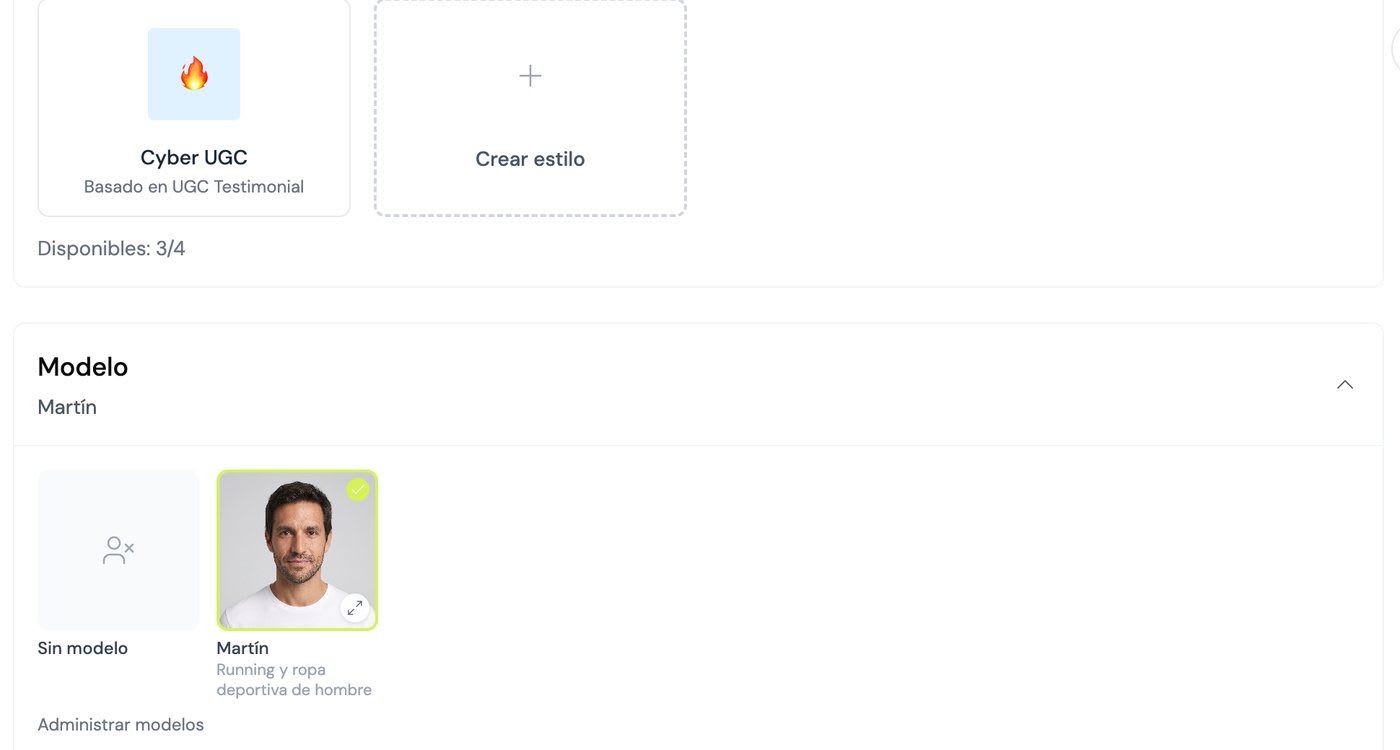
Here's the UGC video of Martín we generated for the tutorial, wearing the same T-shirt as in the photos:
The voice you defined in the model is used in every video so it sounds similar. Similar, not identical: each video is generated from scratch. You pick the accent each time you generate. If you haven't tried videos yet, this article explains how AI product videos work.
Three ways to keep the same person across your catalog
| Shoot with fixed models | Generic AI, photo by photo | Models in Shoptic | |
|---|---|---|---|
| What you have to coordinate | Model, location, photographer and dates | Nothing, but you write everything | Nothing |
| Same person across the catalog | Yes, while they're hired | Hard: it changes between photos | Yes, you pick them every time |
| When a new product comes in | Another shoot | Describe everything again | Pick the product and the model |
| Photos and videos with the same person | Needs another production | Separately | Yes, from the same place |
| Extra cost for using the model | Per shoot | Doesn't apply | None |
What it does and what it doesn't
- It keeps the person's identity (face, hair, skin and build) and changes the pose, clothing and background to fit the scene.
- You only upload photos of people who gave you permission to use their image.
- It doesn't replace your product listing: the garment or item still comes from your store's photos.
- In videos, the voice is similar from one video to the next, not an exact copy.
Plans and credits
Models is available on the Pro plan (up to 5 models) and the Business plan (up to 10). On Free and Starter the section is visible but locked.
Creating or uploading a model costs no credits, and generating an image or video with a model costs the same as generating without one. If you have more than one store connected, your models can be used in all of them.
Related articles
- Model Shot: AI model photos for clothing, straight from a phone photo
- How to change the color of a garment with AI and sell your collection before production
- AI-generated product videos for ecommerce
- Brand Kit: your brand now configures itself
Frequently asked questions
How do I get the same person in every photo of my AI product photos?
With Models, in Shoptic's Brand Kit. You create a model by describing it or uploading photos, and when you generate images for any product you pick it in the Model section. The person stays the same while the pose, scene and clothing change to fit the product.
Does creating a model cost credits?
No. Creating a model with Shoptic or uploading your photos costs no credits, and generating with a model costs the same as generating without one. When you create with Shoptic you get up to 3 attempts per model.
How many models can I have?
Up to 5 on the Pro plan and up to 10 on the Business plan. On the Free and Starter plans, the Models section is locked.
Can I use photos of a real person?
Yes, if you have their permission to use their image: you must confirm it before saving the model. You upload the face from the front and the full body, plus an optional extra angle, each at least 1024 px on the shorter side.
Does the model also appear in videos?
Yes. In the product's Videos tab you pick the style, the model and the accent, and the same person appears in the video. The voice is described in the model so it sounds similar across videos, though it isn't identical.
Does it work for AI model photos for clothing?
Yes, that's the most common use. The model wears the garment you picked and can be combined with styles like Model Shot or Lifestyle. It also works for footwear, accessories and any product shown with a person.
Can I use my models in more than one store?
Yes. If you have more than one store connected to your Shoptic account, the models you created can be used in any of them.
Share article: