Brand Kit: your brand now configures itself
Brand Kit now scans your store and automatically detects colors, fonts, logos, and visual references. Set up your brand once and let it appear in every image you generate.
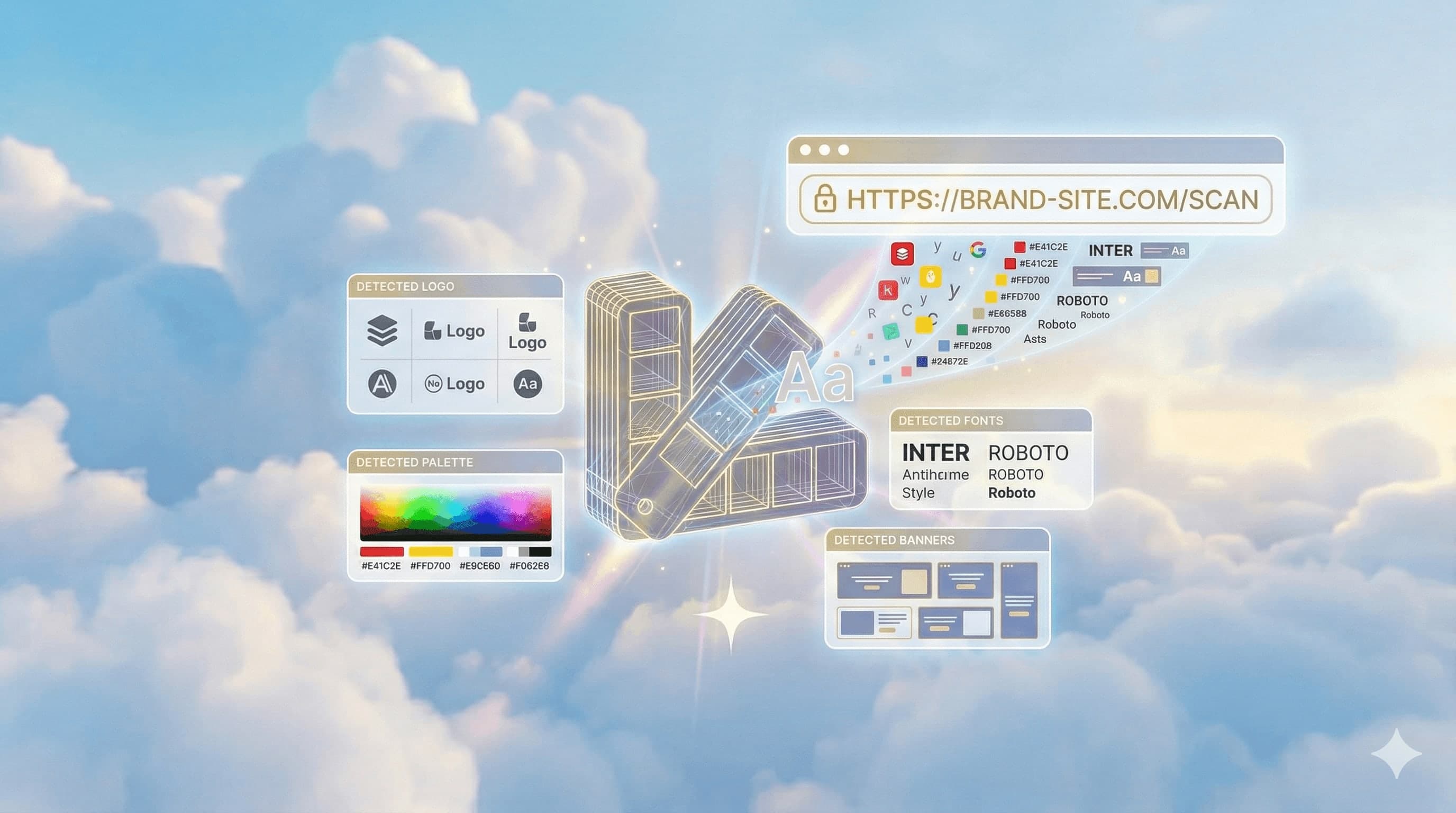
Setting up your brand in a new tool has always been a hassle. What was the hex code for your primary color? What was the font you use in your store called? Do you have your logo as a PNG with a transparent background?
For many sellers, that setup moment was the first time the tool already started to feel like work.
Brand Kit has always been part of Shoptic. But until now, configuring it meant you had to know exactly what your brand consisted of — and have the time to upload everything manually. That got in the way of something important: generating AI content for ecommerce that actually looks like your brand.
That changed.
Paste your store URL. Shoptic does the rest.
The most important update to Brand Kit is the website scanner.
Go to Brand Kit, paste your store URL, and click Scan. Shoptic analyzes your site and automatically detects your color palette, the fonts you use, the logos that appear, and the reference images from your visual communication — banners, creatives, the way you display your products.

Paste your store URL and Shoptic automatically extracts colors, fonts, and logos.
It's not magic. Your store already has all that information — Shoptic now knows how to read it.
You decide what to upload
What the scanner finds is a suggestion, not an automatic decision.
After scanning, Shoptic shows you everything it detected: logo variants, colors with their exact codes, fonts, and visual references. Each element has a checkbox. You select what you want to use — and what you don't want, you simply leave unchecked.
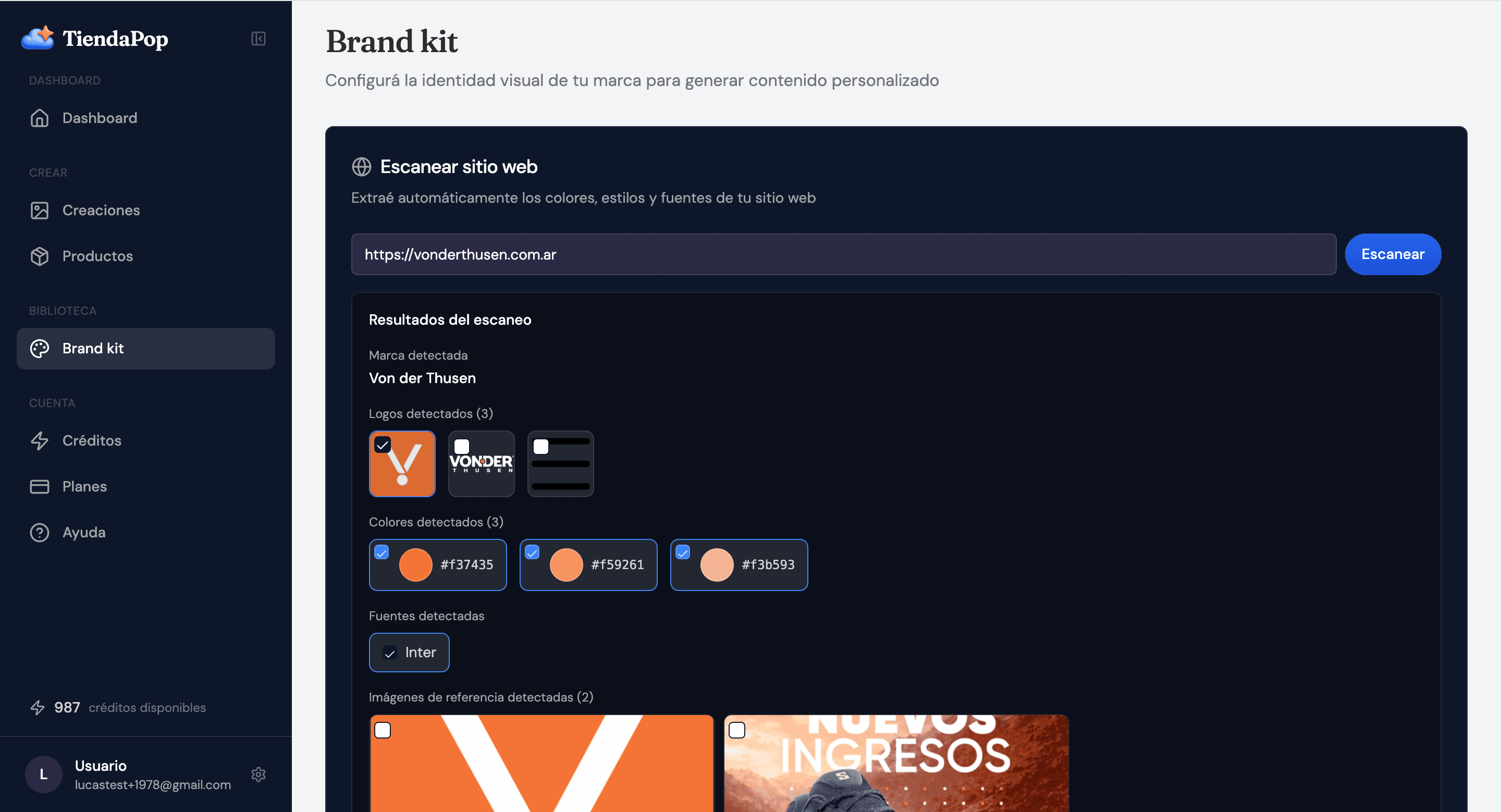
The scanner detected 3 logos, 3 colors, the Inter font, and 2 visual references from the Von der Thusen store.

Each element has a checkbox. You choose what to upload — the decision is yours.
It's your brand. Shoptic does the work of detecting it, but the decisions are yours.
Your brand takes effect at generation time
Once you've set up your Brand Kit, every time you generate an image you can choose which elements to activate.
Want your primary color to appear in the background? Turn it on. Prefer to use your visual references so the style is consistent with your banners? Check it. Just want the logo this time? Perfect.
Brand Kit doesn't impose — it accompanies. You generate with the brand elements that make sense for that particular image.
Your visual references, now as a style
One of the most useful new features for those who need AI ad creatives is that Shoptic detects and uses the reference images from your site — not just to know what colors you use, but to understand how you communicate your brand visually.
If your banners have a defined style — white typography on an orange background, overlaid text compositions, product photos in context — Brand Kit can use that as a guide to generate new creatives aligned with that style.
The result is ads and content that look like what you already do, without having to explain your brand to anyone.
Your physical store, in every image
If you have a physical store, Brand Kit has something extra to offer.
You can upload photos of your store's interior — shelves, décor, lighting, materials. Shoptic uses those images as a backdrop to contextualize your products. The result is a generated image that places your product inside your own store, with the visual style it already has.
With that reference loaded, Shoptic can generate AI images for online stores of any product contextualized within that space. Here's what before and after looks like:



For stores with a physical presence, it's a way to show the product in its real environment without organizing a photo shoot every time you launch something new.
Available on all plans, no credit consumption
Setting up and using Brand Kit has no additional cost. It doesn't consume credits. It's active on all plans, including the Free plan.
Set up your Brand Kit once — and from then on, every image you generate can have your brand inside it.
Related articles
The new Shoptic Brand Kit: visual identity in seconds
New Shoptic Free plan: 100 credits and all styles
Generate images in draft mode for just 1 credit
Frequently asked questions
What does the Brand Kit scanner detect?
It automatically detects your color palette, fonts, logos, and visual references (banners and images) that appear on your website. You can then choose which elements to upload to your Brand Kit.
Do I have to use everything the scanner detects?
No. The scanner shows you a suggestion with everything it found. You decide what to select — you can upload everything, just some elements, or none if you prefer to load manually.
Does Brand Kit consume credits?
No. Setting up Brand Kit and activating it when generating images has no credit cost. It's available on all plans.
Does it work with any online store?
The scanner analyzes whatever URL you paste. It works with Tiendanube stores and any public website.
Can I upload photos of my physical store?
Yes. You can manually upload images of your store's interior. Shoptic uses them as a backdrop to generate contextualized product images — the Retail In Situ style.
What happens if my store changes colors or I update the logo?
You can go back to Brand Kit and scan your site again, or update the elements manually. Brand Kit does not automatically sync with future changes to your store.
Can I activate and deactivate Brand Kit elements per generation?
Yes. When generating an image, you can choose which Brand Kit elements you want Shoptic to consider. Each generation is independent.
Share article: