New integrations: the product photo app for ecommerce now connects with 12 platforms
We stopped connecting only with Tiendanube: today we integrate with 12 ecommerce platforms and with any store that generates a Google Shopping feed. What changes between a native and an external integration, and what happens if you sell on several channels.
Your store lives on one platform. And if you also sell on a marketplace, it lives on two: each with its own dashboard, its own format and its own photos.
Until recently, if that platform wasn't Tiendanube, we weren't an option for you. And if you had two, there was no way to keep them together in one place.
Both things changed.
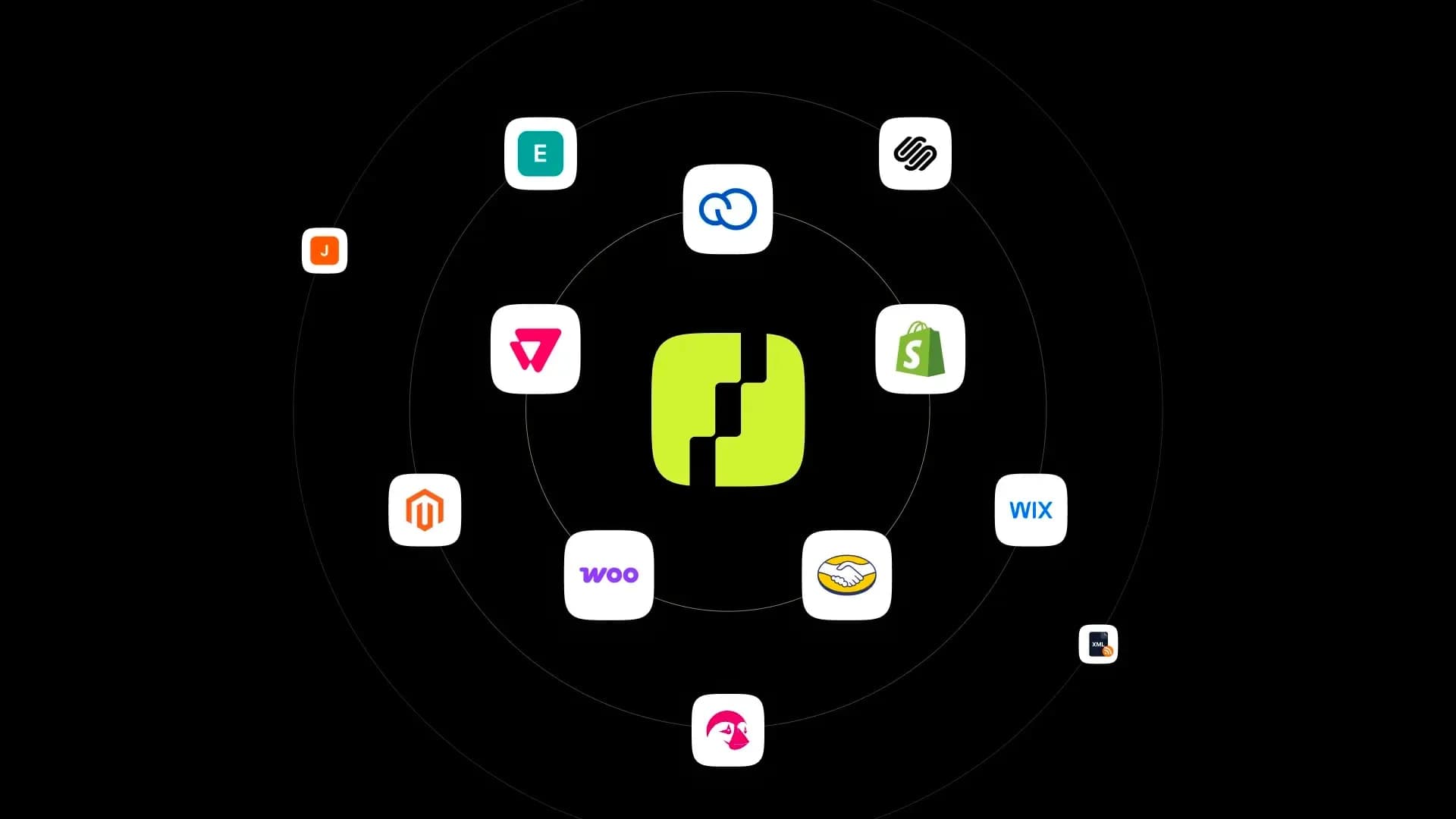
Shoptic is our product photo app for ecommerce: we connect directly with your store and you generate professional images, videos and ads with AI in one click — no photo shoot, no photographer, no designer. On platforms with a native integration you publish what you generated without leaving Shoptic: you choose which images to upload and in what position. Today we connect with 12 ecommerce platforms and with any store that generates a Google Shopping feed.
The 12 platforms Shoptic connects with today
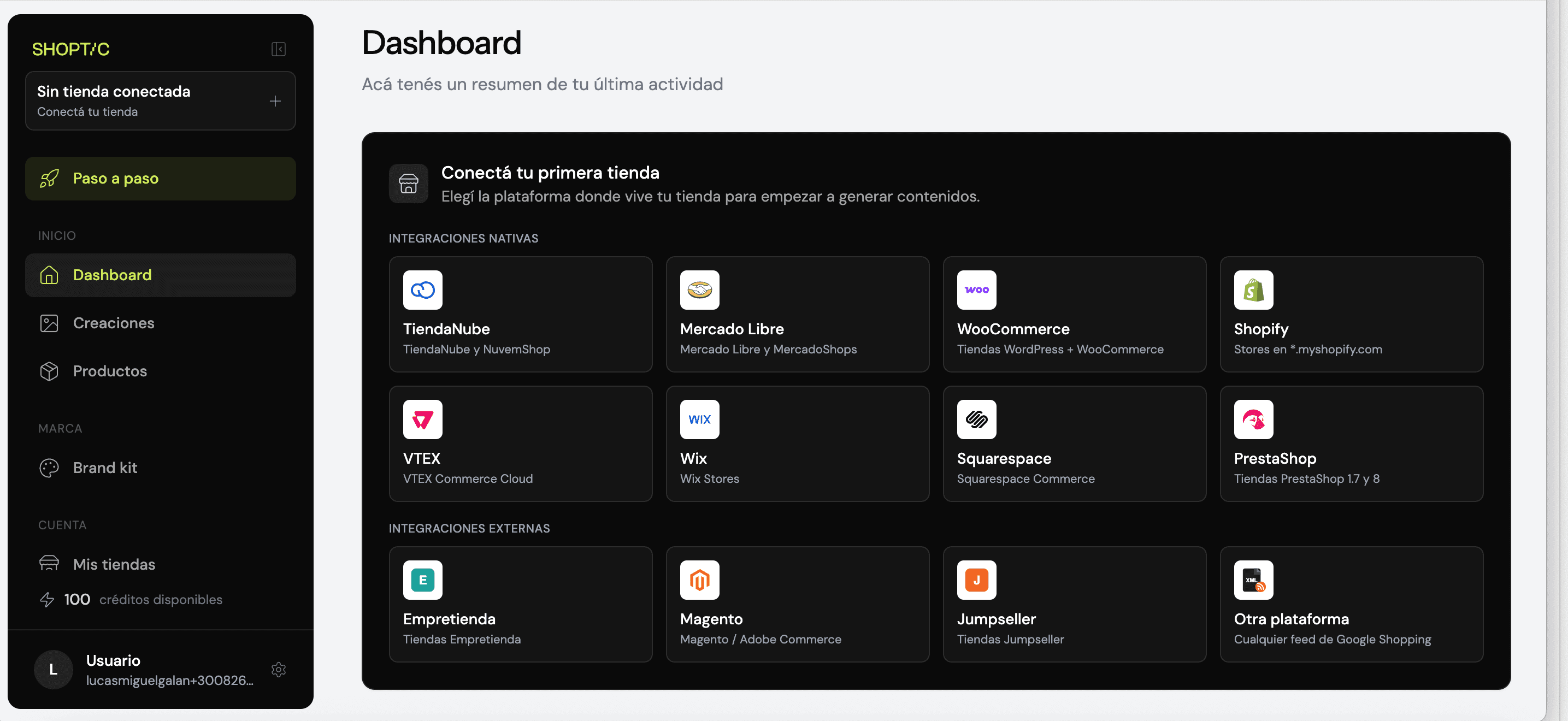
Shoptic's integrations screen: native platforms on top, external ones below.
In the Dashboard, the available ecommerce integrations appear grouped into two blocks.
The native integrations are eight: Tiendanube (also Nuvemshop), Mercado Libre (also MercadoShops), WooCommerce, Shopify, VTEX, Wix, Squarespace and PrestaShop.
The external integrations are three: Empretienda, Magento (Adobe Commerce) and Jumpseller.
And there's one more option that isn't a platform in particular: "Other platform". If your store generates a Google Shopping feed —the standard format ecommerce platforms use to publish products on Google— you can connect it even if we don't have it listed by name.
That's the difference between a closed list and an open door. Your platform doesn't have to be among the 12 for us to read your catalog.
Native and external ecommerce integrations: what's the difference
In both you connect your store and we read your catalog on our own: the products, the titles and the photos you already have come in without you uploading anything by hand.
The difference is on the way back.
| Native | External | |
|---|---|---|
| You connect your store | Yes | Yes |
| We read your catalog | Yes | Yes |
| You generate images, videos and ads | Yes | Yes |
| You download what you generated | Yes | Yes |
| You publish to your store from Shoptic | Yes | No |
The native ones are eight: Tiendanube, Mercado Libre, WooCommerce, Shopify, VTEX, Wix, Squarespace and PrestaShop. The external ones, three: Empretienda, Magento and Jumpseller, plus any store with a Google Shopping feed.
With a native integration, uploading product photos to your store is one more step inside Shoptic: you choose which of the images you generated you want to upload and in what position they'll sit on the product page. You decide — nothing gets published on its own.
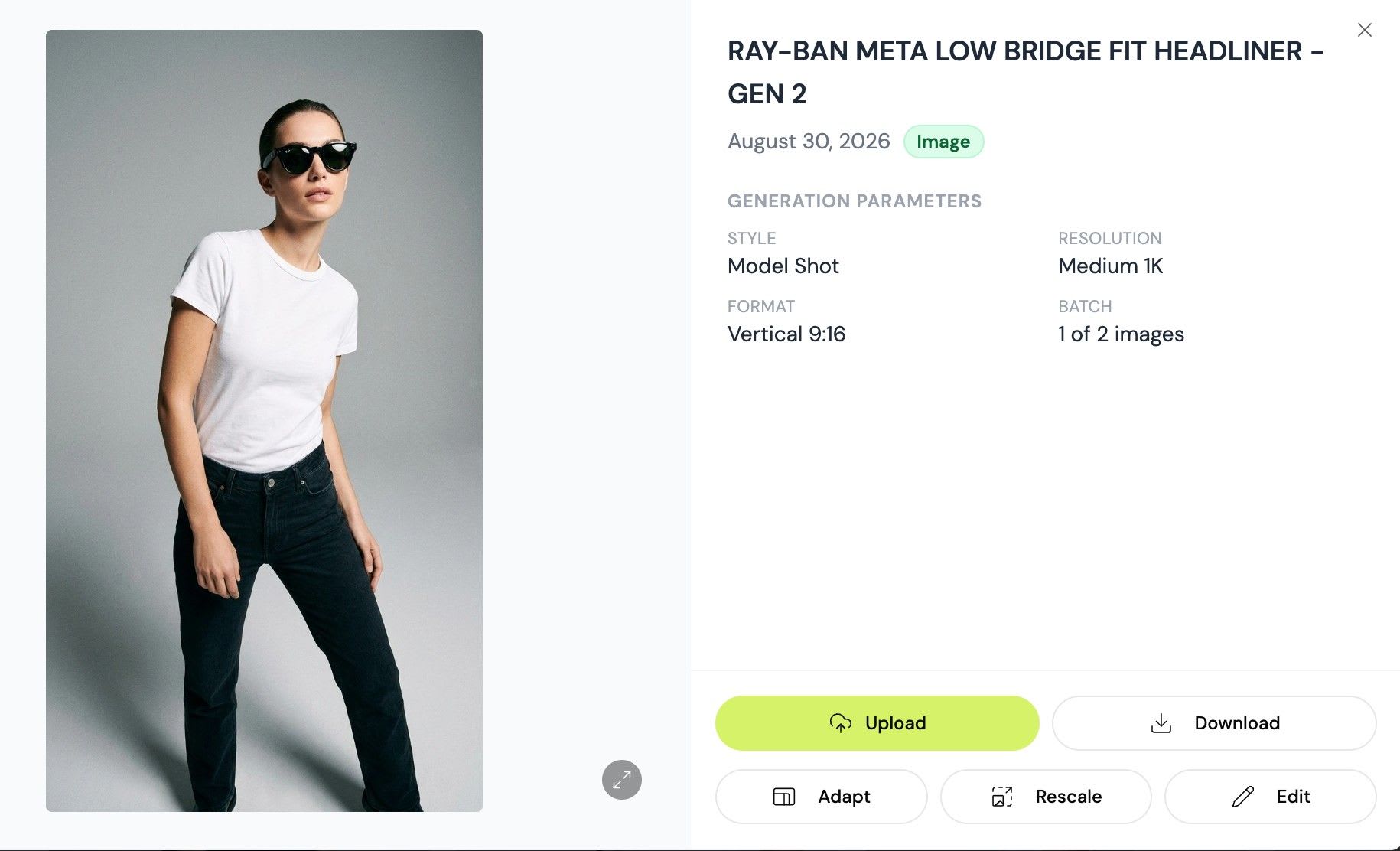
The "Upload" button appears on native integrations: that's the one that sends the image to your store. Next to it there's always "Download", which works on all of them.
With an external one you take that step in your platform's dashboard: you download the images and upload them there. It's a manual step, not a cut-down version of the product — you generate exactly the same thing, with the same styles and the same quality. And downloading is available in both: on a native integration you can also grab the files if you want them for something else.
Selling on several channels at once: all your stores in one place
That's the case that comes up most: your own store on one side and the marketplace on the other. Tiendanube and Mercado Libre are both native integrations, so on both channels you publish without leaving Shoptic.
Having your own store and a marketplace at the same time stops meaning two tools, two subscriptions and two places. It's the same catalog across several channels, worked from a single account.
What it does and what it doesn't do yet. Each connection is independent. Today you work all your stores from the same account and with the same credit pool, but content is generated per store: if you want the same image on your own store and on the marketplace, you generate it on each one. Being one place doesn't yet mean being one job — and we'd rather say so before you find out on your own.
And it isn't a convenience detail. According to the 2025 CACE Annual Ecommerce Study, 85% of consumers looked for information online before buying in a physical store, mainly through search engines (59%) and marketplaces (36%). Your product gets looked at in several places before anyone decides, and in all of them the first thing they see is the photo.
Several stores in one account: the Business plan
Connecting more than one store is part of the Business plan: up to 3 stores in the same account, and they can be on different platforms. Your own store, your marketplace account and a third one living in the same place, with a single credit pool.
On the other plans you connect one store. If you sell on a single channel today, that's enough. If you sell on several, Business is what lets you keep them together instead of maintaining one tool per channel.
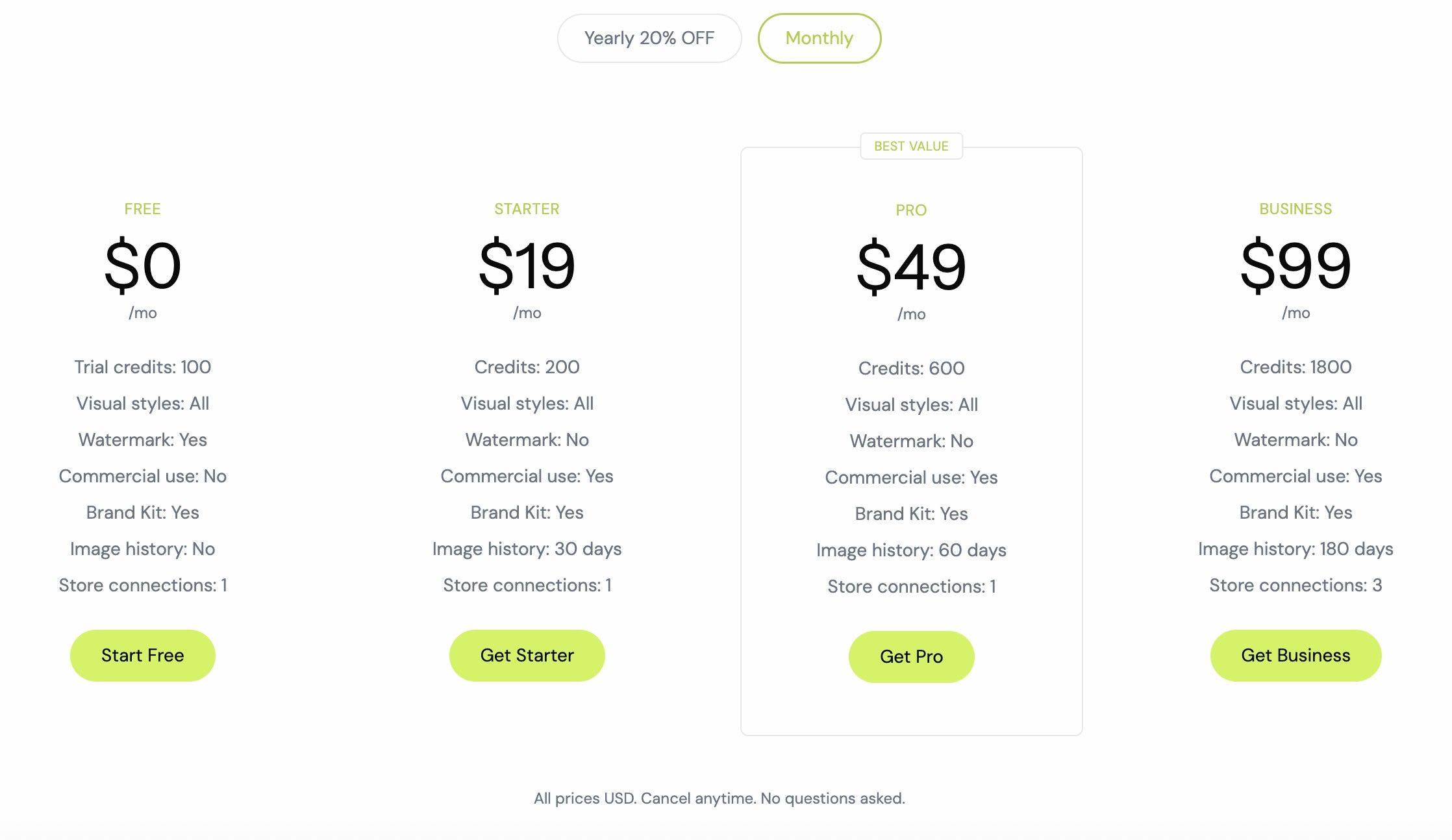
Plans differ in credits, image history and number of store connections. Multi-store belongs to Business, and there's a 20% discount on yearly billing.
In the Business plan post we explain how the shared credit pool works when several stores are connected. Current conditions and pricing are on the pricing page.
Why it matters: uploading product photos to your store, without leaving Shoptic
Any image tool hands you a file. Then the real work starts: downloading it, finding it, opening your store's dashboard, looking for the product, uploading it, arranging it, saving.
With a native integration that back-and-forth disappears. You pick the product that's already inside, generate with AI in one click, and from there you choose which images go on the product page and in what order.
Every new product that comes into the catalog stops being a pending photo shoot. The hours you don't spend coordinating a photographer, waiting on edits and moving files, you spend selling.
If you want to finish the whole product page —images, description and content— in how to optimize your ecommerce product listings we explain the three ways to generate AI content for ecommerce depending on your starting point.
How to connect your store in Shoptic
- Log in to your Shoptic account. If you don't have one yet, you start free with 100 credits.
- In the Dashboard, tap "Connect your first store".
- Pick your platform from the list, among the native and external ones.
- Authorize the connection. Your products show up in the Products section, with their current photos.
- Pick a product and generate. If your integration is native, from there you choose which images to upload to the product page and in what position.
The whole process takes less time than preparing a single photo.
Related articles
- How to manage multiple online stores from a single account
- Shoptic is now available across Latin America for Tiendanube and Nuvemshop sellers
- How to optimize your ecommerce product listings
- Tiendanube walked through Shoptic end to end: watch the full demo
Frequently asked questions
Which ecommerce platforms does Shoptic integrate with?
At Shoptic we have native integrations with Tiendanube (and Nuvemshop), Mercado Libre (and MercadoShops), WooCommerce, Shopify, VTEX, Wix, Squarespace and PrestaShop, and external integrations with Empretienda, Magento (Adobe Commerce) and Jumpseller. You can also connect any store that generates a Google Shopping feed, even if we don't have it listed by name.
What's the difference between a native and an external integration?
In both you connect your store and we read your catalog, so your products and your photos come in on their own. The difference is the last step: with a native integration you publish to the product page from Shoptic, choosing which images to upload and in what position, and with an external one you download them and upload them to your store's dashboard by hand. Downloading images works in both.
My platform isn't on the list. Can I still connect?
Yes, if your platform generates a Google Shopping feed. On the integrations screen you'll find the "Other platform" option, which we built for exactly that case. With that feed we read your catalog and you can generate images of your products even if we don't have your platform listed by name.
Can I connect my store and my Mercado Libre account at the same time?
Yes, with the Business plan, which lets you connect up to 3 stores in the same account and allows them to be on different platforms. On the other plans you connect a single store. Keep in mind that each connection is independent: you work them from the same account and with the same credit pool, but content is generated per store.
How many stores can I have connected?
Up to 3 stores in the same account with the Business plan, and you can combine different platforms: for example your own store, your marketplace account and a third store. The other plans allow one connected store.
Does Shoptic generate images with AI?
Yes. You pick a product from your catalog, pick the style and generate the image with AI in one click. You don't need to know anything about prompts or follow model releases: we take care of that. You also don't need a photo shoot, a photographer or a designer.
Do I have to upload my photos to Shoptic?
No. Through the connection with your store, your products are already inside with the photos you have today. You pick the product from the list and generate from there. For uploading there are no files to move; for downloading, you can grab what you generated whenever you want.
Does the price or the credits change depending on the platform?
No. Credits are consumed by what you generate —images, videos, content— and not by the platform you have connected. We charge the same for an external integration as for a native one.
Start with the store you already have
Connect your store, pick your most important product and generate with AI in one click. If your integration is native, you upload the image to the product page without leaving Shoptic.
Share article: