The new Shoptic Brand Kit: visual identity in seconds
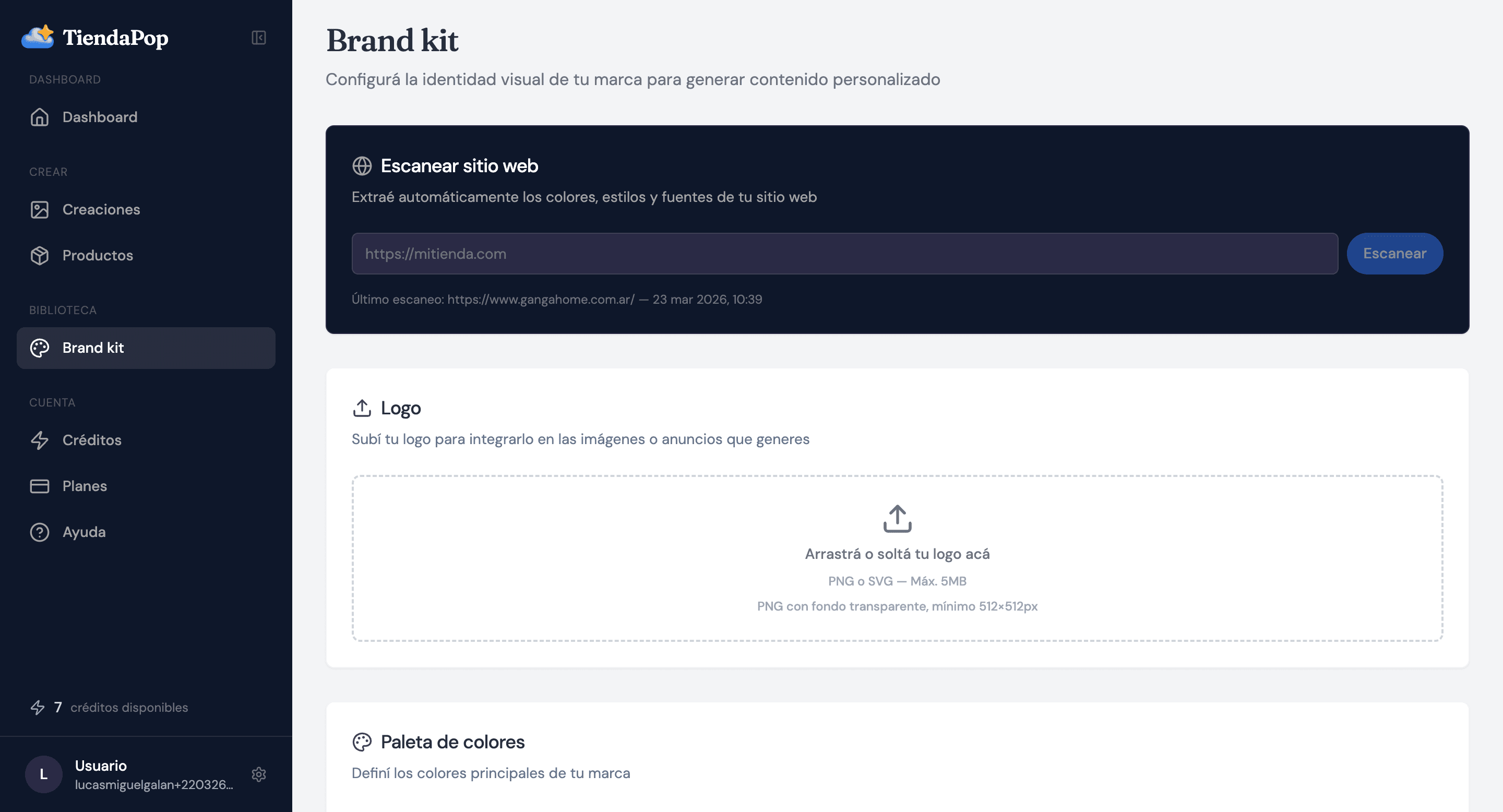
Paste your store URL and Shoptic automatically detects your logo, colors, fonts and reference images. You can also add physical store photos for the Retail style.
The new Shoptic Brand Kit: your complete visual identity in seconds
Until now, setting up the Brand Kit in Shoptic required uploading your logo and choosing colors manually. That has changed.
With the new Brand Kit, paste your store URL and Shoptic automatically extracts everything: logos, main colors, fonts, and reference images. In seconds, the AI knows what your brand looks like and starts using it in every generation.
To learn about the previous version, read: Brand Kit in Shoptic: how to maintain your visual identity with AI.
What changed in the new Brand Kit?
The previous version asked you to configure your brand element by element. The new Brand Kit flips that: give your store URL and Shoptic detects everything automatically. You review, adjust, and save. You can also add physical store photos for the Retail style.
How the automatic store scan works
- Go to Brand Kit from the side menu
- Paste your store URL in "Scan website"
- Click Scan
- Review logos, colors, fonts and images detected
- Choose what to keep and save
Everything detected is editable before saving.
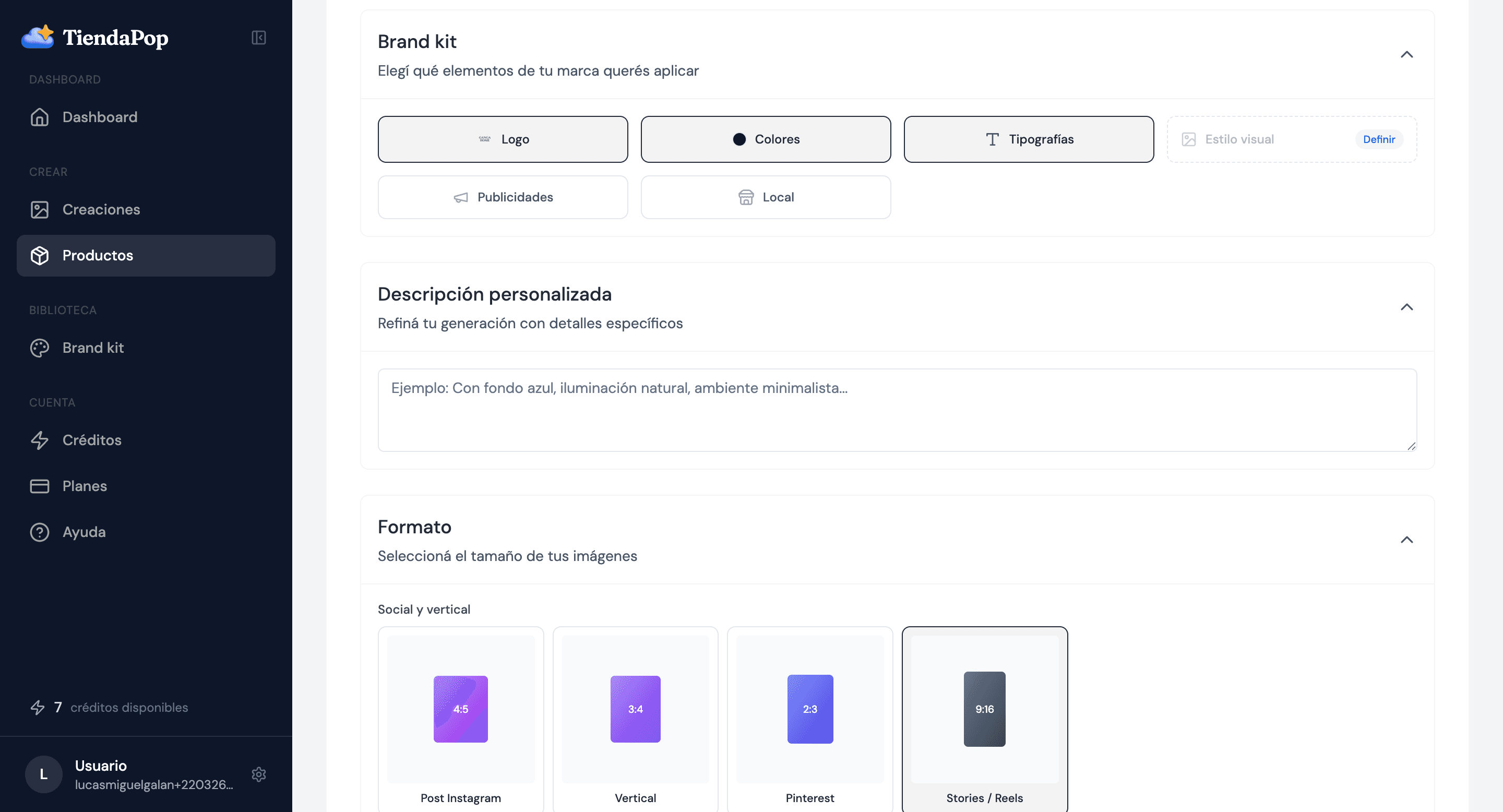
What the scan detects
Logos: finds all logos on your site so you can choose which to apply.
Colors: extracts the dominant color palette from your site.
Fonts: detects the typefaces your store uses.
Reference images: identifies banners and product photos for style guidance.
Your physical store in your images: the Retail style
Upload photos of your physical store to the Brand Kit. Shoptic analyzes the visual style and uses it as reference for Retail style images.
How the Brand Kit is applied when generating images
From the generation panel, activate or deactivate: Logo, Colors, Fonts, Ads and Store.
Why this directly impacts your sales
Visual consistency is a concrete conversion factor. When a potential customer sees your products on Instagram, clicks through, and everything looks the same — same colors, same style — trust increases. And trust sells.
FAQ
Do I need to scan my store to use the Brand Kit?
No. You can still upload elements manually. The scan is a faster option and everything is editable.
What if the scan detects elements I don't want?
You can deselect any element before saving.
Does the Brand Kit apply to all generation types?
It applies to images and ads.
Set up your Brand Kit now
Share article: